 EDS Coder
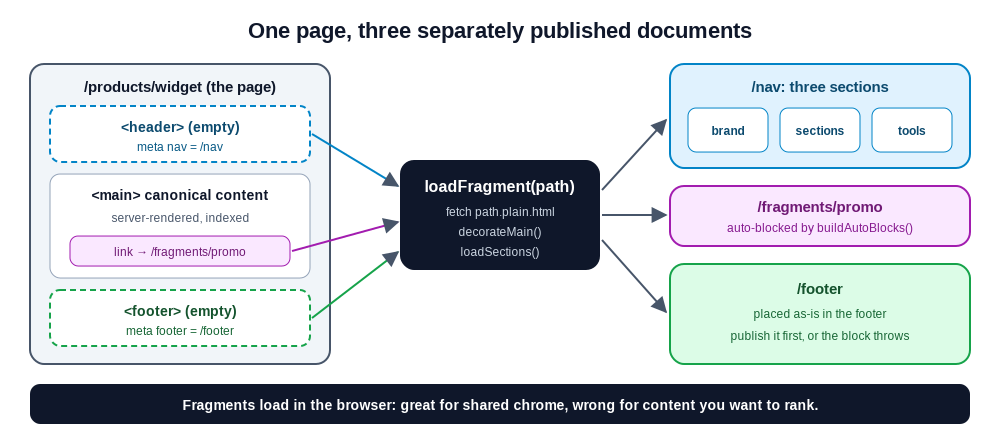
On an Edge Delivery Services site, the header and footer aren't part of the page. They're separate documents, /nav and /footer, published on their own schedule and pulled in by the browser. Every other reusable chunk of content works the same way, as a fragment.
Once you understand that one mechanism, a lot of EDS behavior makes sense: why the nav updates without republishing every page, why fragment content can be missed by crawlers, and why the footer breaks if /footer is never published.
One function does all the work: loadFragment#
The fragment block in the boilerplate exports loadFragment(path). The header, footer and authored fragments all use it:
export async function loadFragment(path) {
  if (path && path.startsWith('/') && !path.startsWith('//')) {
    const resp = await fetch(`${path}.plain.html`);
    if (resp.ok) {
      const main = document.createElement('main');
      main.innerHTML = await resp.text();
      // ...rebase ./media_ image paths to the fragment's folder...
      decorateMain(main);
      await loadSections(main);
      return main;
    }
  }
  return null;
}
Three things follow from this:
- A fragment is just a page.
.plain.htmlreturns the page's content without<head>, header or footer. Anything you can author on a page (sections, blocks, images) works in a fragment. - Fragments are decorated like pages, with the same
decorateMain, so blocks inside a fragment load their own JS and CSS. - Only site-relative paths are allowed.
loadFragmentignores full URLs and//paths, so a fragment can't pull content from another domain.
Three ways a fragment gets onto a page#
- By the boilerplate.
loadLazy()builds aheaderandfooterblock. Those blocks callloadFragmentwith a path from metadata. - By an author, with a block. A
Fragmentblock containing a link to the fragment page, placed in any section. - By an author, with just a link. Any link to a path containing
/fragments/is turned into the fragment's content bybuildAutoBlocks()inscripts.js. Authors don't need to create a block at all.
The header: three sections become a nav#
The header block reads the nav metadata (default /nav), loads that document, and expects three sections, separated by section breaks (---):
| Section | Becomes | Typical content |
|---|---|---|
| 1 | .nav-brand |
Logo or site name, linked to home |
| 2 | .nav-sections |
A bulleted list of top-level links |
| 3 | .nav-tools |
Search, sign-in, language switcher |
In the second section, a list item with a nested list becomes a dropdown. The boilerplate wraps its label in a <button> with aria-expanded, so screen readers announce it as expandable. Below 900 px the nav collapses behind a hamburger button. It also closes on Escape and when focus leaves the nav. Keep those behaviors if you rewrite header.js: they're the accessibility work that's easiest to lose.
The footer is simpler: the footer metadata (default /footer) is loaded and its content is placed in the footer, with no extra decoration.
Different nav for different sections#
Because the path comes from metadata, you can switch navs without code. Add a nav and footer column to the bulk metadata sheet:
| URL | nav | footer |
|---|---|---|
/de/** |
/de/nav |
/de/footer |
/partners/** |
/partners/nav |
/footer |
That's also how multilingual sites give each language its own navigation.
A gotcha: publish /nav and /footer first#
loadFragment returns null when the fetch fails, and the boilerplate's header and footer don't check for that. If /footer was never published, the footer block throws an error in the console and renders nothing. On a new site, or a new language folder, preview and publish nav and footer before anything else. If you customize these blocks, add a null check.
Building a mega menu without slowing the page#
Large navs tempt teams to put every link into /nav. That makes the nav document huge and every page loads all of it. A better pattern keeps /nav small and loads each panel only when someone opens it:
- In
/nav, each top-level item links to a fragment, for example/fragments/menu/products. header.jsturns each item into a button, and loads the panel's fragment on the first open.
import { loadFragment } from '../fragment/fragment.js';

function lazyPanel(button, path) {
  let panel;
  button.addEventListener('click', async () => {
    const open = button.getAttribute('aria-expanded') === 'true';
    button.setAttribute('aria-expanded', String(!open));
    if (!panel) {
      panel = document.createElement('div');
      panel.className = 'nav-panel';
      const fragment = await loadFragment(path);
      if (fragment) panel.append(...fragment.childNodes);
      button.after(panel);
    }
  });
}
Authors edit each panel as its own page, with columns and images, and visitors who never open the menu never download it.
Auto-blocking: turning content patterns into blocks#
buildAutoBlocks() runs during decoration and creates blocks the author didn't write. The current boilerplate does two:
- links to
/fragments/...are replaced with the fragment's content; - links to
/widgets/...become awidgetblock.
You can add your own with buildBlock(). A classic example is turning a page that starts with an image and a heading into a hero, so authors don't need a Hero table:
import { buildBlock } from './aem.js';

function buildHeroBlock(main) {
  const h1 = main.querySelector('h1');
  const picture = main.querySelector('picture');
  // eslint-disable-next-line no-bitwise
  if (h1 && picture && (h1.compareDocumentPosition(picture) & Node.DOCUMENT_POSITION_PRECEDING)) {
    const section = document.createElement('div');
    section.append(buildBlock('hero', { elems: [picture, h1] }));
    main.prepend(section);
  }
}
Use auto-blocking for patterns authors repeat on every page. Don't use it for anything authors would be surprised by: explicit blocks are easier to understand.
Placeholders: shared strings, not shared content#
For short, repeated text (button labels, "Read more", form messages, legal lines), a fragment is too heavy. Use a placeholders sheet with Key and Text columns, one per language folder.
Note that fetchPlaceholders is no longer in the boilerplate's aem.js. Copy placeholders.js from Adobe's block collection, then:
import { fetchPlaceholders } from '../../scripts/placeholders.js';

const { readMore, searchLabel } = await fetchPlaceholders('de');
Keys are camel-cased, so read more becomes readMore.
When not to use a fragment#
Fragments are decorated in the browser, so crawlers and AI agents that don't run JavaScript won't see their content as part of the page. That's fine for a nav, a footer, a promo banner or a newsletter signup. It's wrong for the content the page is actually about.
- Use a fragment for content that repeats across many pages, or a complex section that's easier to author on its own.
- Don't use a fragment for a page's main text, headings, or anything you want to rank for.
- Mark fragments
noindex. Add a*/fragments/*row withrobots: noindexin the bulk metadata sheet, plus/navand/footer. - Remember the separate publish step. Authors who edit a fragment must publish the fragment, not the page that uses it.
Key takeaways#
- Header, footer and fragments all go through
loadFragment(), which fetches<path>.plain.htmland decorates it like a page. - The nav document has three sections: brand, sections and tools. Nested lists become accessible dropdowns.
- Use
navandfootercolumns in bulk metadata to switch navigation per section or language. - Publish
/navand/footerfirst. The boilerplate doesn't handle a missing one. - Load mega-menu panels on demand, and keep canonical content out of fragments.
Sources: aem.live: Fragments · aem.live: SEO and GEO · aem.live: Placeholders · aem.live: Bulk metadata · adobe/aem-boilerplate on GitHub