 EDS Coder
In an Edge Delivery Services (EDS) project authored with the Universal Editor, three JSON files decide what authors can do: which components they can add, which fields they fill in, and where each component is allowed. Get them right and authoring feels effortless. Get them wrong and authors see a block they can't place, a field that doesn't save, or a page that renders differently from the editor.
This post explains how the three files fit together, using the files in the aem-boilerplate-xwalk starter.
The three files in one sentence each#
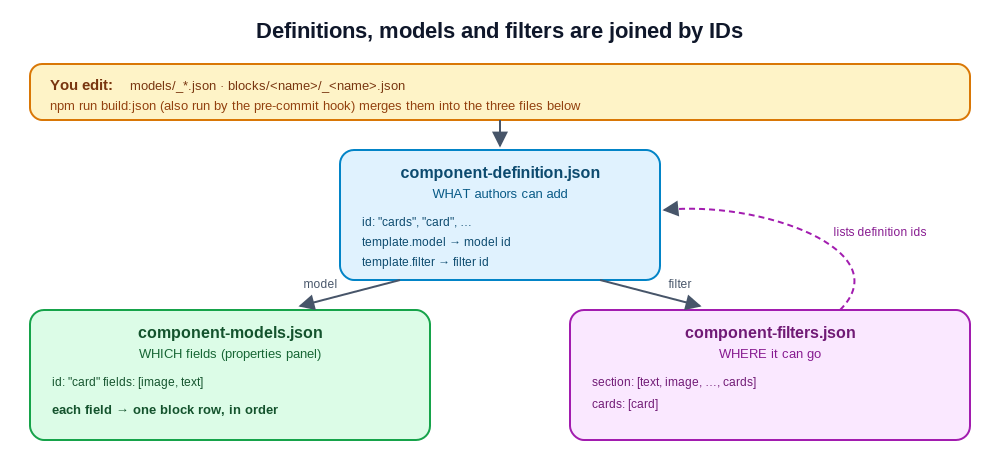
component-definition.json: what can be added. Each entry is a component in the editor's "Add" menu, with the AEM resource it creates.component-models.json: which fields a component has. Each entry is the form shown in the properties panel.component-filters.json: where it can go. Each entry lists the components allowed inside a container.
They're joined by IDs. A definition's template.model points to a model id; its template.filter points to a filter id. Filters list definition ids.
Don't edit the root files directly#
In the xwalk boilerplate, the three root files are generated. The sources are partials:
models/_component-definition.json,_component-models.jsonand_component-filters.json, which pull in the shared partials (_page.json,_section.json,_text.json,_image.json,_title.json,_button.json) and everyblocks/*/_*.json.blocks/<name>/_<name>.json, one per block, holding that block'sdefinitions,modelsandfilterstogether.
npm run build:json merges them with merge-json-cli, and the boilerplate's Husky pre-commit hook runs it automatically whenever you commit a changed _*.json file. Edit the partials, and keep each block's model next to its code.
Definitions: what authors can add#
Here's the Hero block's definition from the boilerplate:
{
  "title": "Hero",
  "id": "hero",
  "plugins": {
    "xwalk": {
      "page": {
        "resourceType": "core/franklin/components/block/v1/block",
        "template": { "name": "Hero", "model": "hero" }
      }
    }
  }
}titleis what authors see in the menu.idis how filters refer to it.resourceTypetells AEM what kind of node to create. Blocks usecore/franklin/components/block/v1/block. Items inside a block, like each card in Cards, use.../block/v1/block/item. The built-in default content uses its own types, such assection/v1/sectionandbutton/v1/button.template.namebecomes the block name, and therefore the CSS class and the folder EDS loads code from.template.modelandtemplate.filterlink to the other two files.
Models: the fields, and how they become rows#
A model is a list of fields. The Hero's:
{
  "id": "hero",
  "fields": [
    { "component": "reference", "valueType": "string", "name": "image", "label": "Image", "multi": false },
    { "component": "text", "valueType": "string", "name": "imageAlt", "label": "Alt", "value": "" },
    { "component": "richtext", "name": "text", "value": "", "label": "Text", "valueType": "string" }
  ]
}
The component value picks the input: text, richtext, reference (an asset), aem-content (a link to a page), select, multiselect, boolean, number and others.
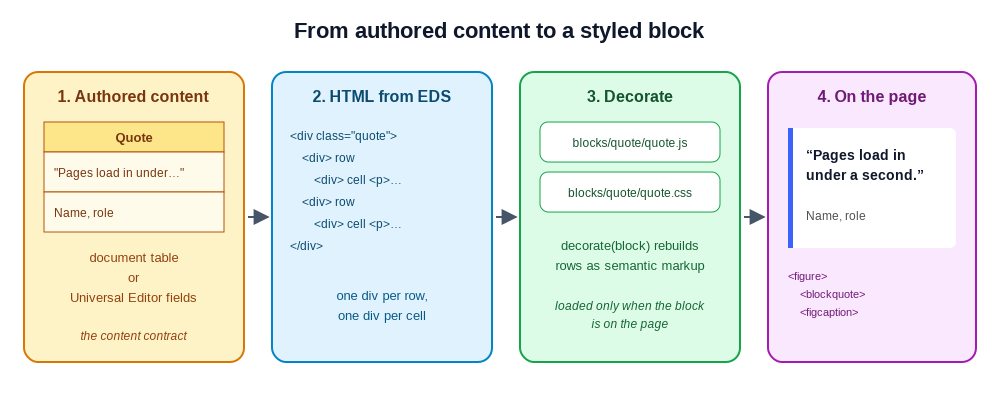
The part that surprises developers is how fields reach your block's JavaScript. Each field becomes one row of the block, in the order it's defined. The Hero above renders as two rows, an image and the rich text, which is the same markup a document author would create with a two-row table. That's why block code can stay the same across authoring methods.
The Hero has three fields but only two rows because of the naming conventions below.
Naming conventions that change the markup#
Field names aren't just labels. EDS uses them to decide how fields are rendered:
- Field collapse. A field whose name is another field's name plus a suffix (
Alt,Text,Title,TypeorMimeType) is merged into that field instead of getting its own row.imageAltbecomes thealtattribute ofimage. The boilerplate's button useslink,linkText,linkTitleandlinkTypeto produce one styled link. - Element grouping. Fields that share a prefix followed by an underscore, such as
cta_linkandcta_label, are rendered together in a single cell. classes. A field namedclassesdoesn't render as a row. Its values are added as classes on the block, the Universal Editor equivalent ofHero (dark)in a document. Use aselectormultiselectso authors pick from known variants.
If a block's rows come out in an unexpected shape, check field names before you debug the JavaScript.
Filters: where components can go#
Filters build the page's hierarchy. From the boilerplate:
[
  { "id": "main", "components": ["section"] },
  { "id": "section", "components": ["text", "image", "button", "title", "hero", "cards", "columns", "fragment"] },
  { "id": "cards", "components": ["card"] }
]- A page's
maincan only contain sections. - A section can contain default content and the listed blocks. A new block can't be added anywhere until you add its
idhere, inmodels/_section.json. - The Cards definition has
"filter": "cards", so it's a container whose children can only becarditems. Each card is ablock/v1/block/itemwith its own model, and renders as one row of the Cards block.
Use this container-and-item pattern for anything authors repeat: cards, tabs, accordion panels, slides.
Keep instrumentation when you decorate#
The Universal Editor finds editable elements through data-aue-* attributes in the page. When decorate replaces a row with a new element, those attributes are lost and the author can no longer select that part of the block.
The xwalk boilerplate's scripts.js exports moveInstrumentation(from, to) for this. The Cards block calls it on each row and each image it replaces. Call it whenever you create a new element to stand in for an authored one.
Live editing is handled by scripts/editor-support.js. When an author changes a field, it fetches the updated HTML, sanitises it with DOMPurify and re-runs decoration on just that block. That's why decorate must be safe to run on a fresh copy of the block.
Common mistakes#
- Block missing from the section filter. It's defined and modelled but never appears in the Add menu.
- Editing
component-models.jsoninstead of the partial. Your change is overwritten the next time someone commits a model change. - Mismatched IDs.
template.model: "Hero"against a modelidofherogives an empty properties panel. IDs are case-sensitive. - Reordering or renaming fields after launch. Rows are positional and values are stored under field names, so existing pages break or lose content. Add new fields at the end.
textwhere you meantrichtext. Authors can't add links or bold text, and a fix later means re-entering content.- Dropping instrumentation. The block renders correctly but can't be selected in the editor.
How EDS Coder uses this#
When EDS Coder generates a block, it writes the _<block>.json partial with the JavaScript and CSS, adds the block to the section filter, and keeps moveInstrumentation calls in decorate. The file tree marks each of those files as added or modified, so you can review the model alongside the code before syncing.
Sources: aem.live: Component model definitions · aem.live: Universal Editor tutorial · aem.live: AEM authoring · adobe-rnd/aem-boilerplate-xwalk on GitHub