 EDS Coder
Blocks are how Edge Delivery Services (EDS) turns plain authored content into designed page components. A block is just a folder with a JavaScript file and a CSS file. There's no build step, no framework and no server code.
This tutorial builds a Quote block from scratch: a pull quote with the speaker's name underneath. It's small enough to finish in one sitting but touches every part of the block lifecycle. It works in both document-based authoring and the Universal Editor.
Step 1: Agree the content structure first#
Before writing code, decide what authors will enter. This is the block's contract, and it matters more than the code: once authors have created hundreds of quotes, changing it is a content migration.
For our block, authors enter two rows:
| Quote |
|---|
| Edge Delivery made our pages load in under a second. |
| Priya Sharma, Head of Digital |
In document-based authoring (da.live, Word or Google Docs), that's literally a table whose first row is the block name. In the Universal Editor, it's a component with two fields; we'll add that in step 6.
Keep the contract simple: one row per thing, in the order it appears on the page. If an author can't guess what goes in a row, the structure is too clever.
Step 2: Look at the HTML EDS gives you#
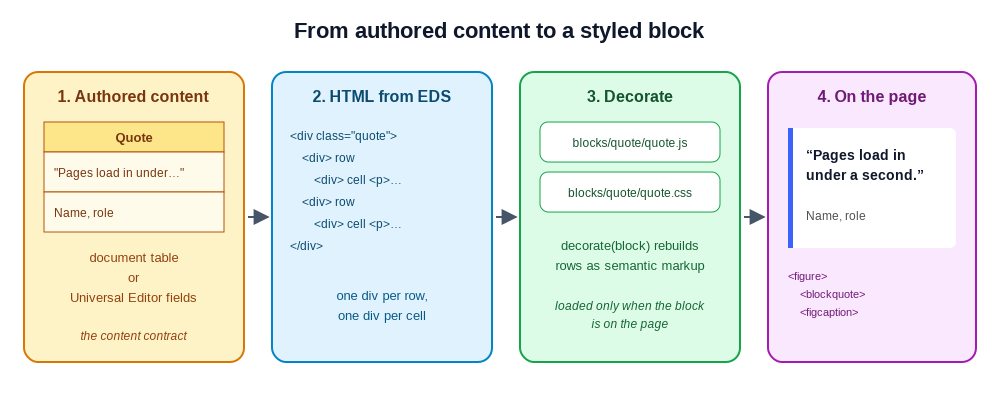
EDS turns the table into predictable markup before your code runs. Each row becomes a div, each cell becomes a div inside it, and the block name becomes a class:
<div class="quote">
  <div>
    <div><p>Edge Delivery made our pages load in under a second.</p></div>
  </div>
  <div>
    <div><p>Priya Sharma, Head of Digital</p></div>
  </div>
</div>
This is the input to your block. Open the page with .plain.html on the end of the URL (for example /about.plain.html) to see exactly what EDS delivers for any page.
Step 3: Create the block folder#
Blocks live in blocks/<name>/, and the folder name, the JS file and the CSS file must all match the block name:
blocks/
  quote/
    quote.js
    quote.css
When the page loads, scripts/aem.js finds every element with a block class, and loads quote.css and quote.js for it. Blocks that aren't on the page are never downloaded. That's a big part of why EDS pages stay fast.
Step 4: Write the decorate function#
Every block exports a default decorate function that receives the block element. Its job is to turn the generic rows into semantic, accessible markup:
import { moveInstrumentation } from '../../scripts/scripts.js';

export default function decorate(block) {
  const [quoteRow, authorRow] = [...block.children];
  if (!quoteRow) return;

  const figure = document.createElement('figure');

  const blockquote = document.createElement('blockquote');
  moveInstrumentation(quoteRow, blockquote);
  blockquote.append(...(quoteRow.firstElementChild?.childNodes ?? []));
  figure.append(blockquote);

  if (authorRow) {
    const caption = document.createElement('figcaption');
    moveInstrumentation(authorRow, caption);
    caption.append(...(authorRow.firstElementChild?.childNodes ?? []));
    figure.append(caption);
  }

  block.replaceChildren(figure);
}
A few habits worth building from your first block:
- Read rows by position. The content contract from step 1 is your API. Destructure the rows and handle missing ones gracefully, because authors will leave cells empty.
- Move nodes, don't copy HTML strings.
append(...childNodes)keeps the author's links, bold text and paragraphs intact. AvoidinnerHTMLwith authored content. - Keep instrumentation.
moveInstrumentationcomes from the Universal Editor boilerplate (aem-boilerplate-xwalk). It carries the editor'sdata-aue-*attributes onto your new elements so authors can still click and edit them. If you're on the standardaem-boilerplate, drop the import and those two lines. - Don't fetch on the critical path. If a block needs data, fetch it inside
decorate, but never in a block that's likely to be in the first section unless you must.
Step 5: Style it with scoped CSS#
Scope every rule to the block class, and use the design tokens from styles/styles.css instead of hard-coded values:
.quote figure {
  margin: 0;
  padding: 32px 24px;
  border-left: 4px solid var(--link-color);
}

.quote blockquote {
  margin: 0;
  font-family: var(--heading-font-family);
  font-size: var(--heading-font-size-s);
  line-height: 1.4;
}

.quote blockquote p {
  margin: 0;
}

.quote figcaption {
  margin-top: 16px;
  font-size: var(--body-font-size-s);
  color: var(--dark-color);
}

@media (width >= 900px) {
  .quote figure {
    padding: 48px 64px;
  }
}
Mobile first, one breakpoint, tokens for colour and type. That's enough for most blocks. Because the CSS only loads when the block is on the page, there's no global stylesheet to bloat.
Step 6: Add variants#
Authors often need the same block in a different style. In document-based authoring they add the variant in brackets after the name: Quote (highlight). EDS adds it as a class, so the block becomes <div class="quote highlight">, and you style it with no extra JavaScript:
.quote.highlight figure {
  border-left: 0;
  background-color: var(--light-color);
  text-align: center;
}
In the Universal Editor, a field named classes does the same job; the next post on component models covers it.
Step 7: Make it editable in the Universal Editor#
If your project uses the xwalk boilerplate, the Universal Editor needs to know the block exists. Add blocks/quote/_quote.json:
{
  "definitions": [
    {
      "title": "Quote",
      "id": "quote",
      "plugins": {
        "xwalk": {
          "page": {
            "resourceType": "core/franklin/components/block/v1/block",
            "template": { "name": "Quote", "model": "quote" }
          }
        }
      }
    }
  ],
  "models": [
    {
      "id": "quote",
      "fields": [
        { "component": "richtext", "name": "quote", "label": "Quote", "valueType": "string" },
        { "component": "text", "name": "author", "label": "Name and role", "valueType": "string" }
      ]
    }
  ],
  "filters": []
}
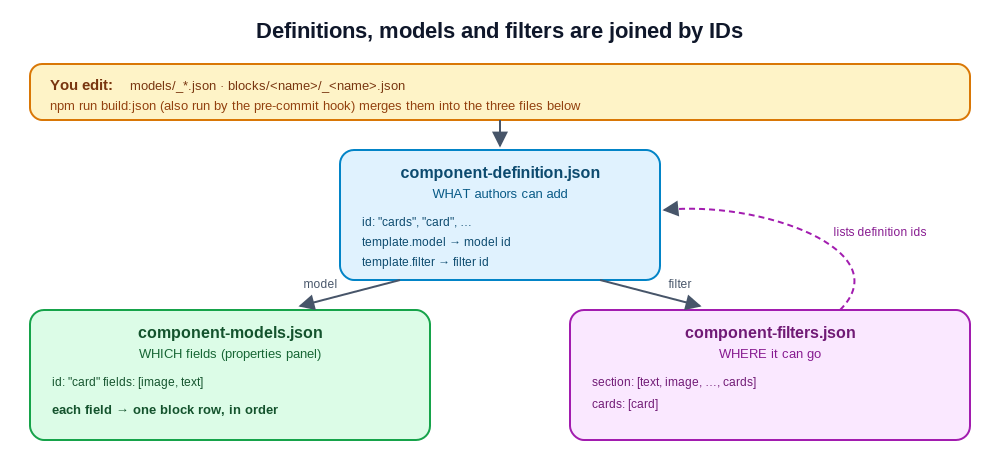
Each field becomes one row of the block, in order, so this produces exactly the markup from step 2 and decorate doesn't change.
Then let authors place it: add "quote" to the section filter's components list in models/_section.json. Finally, run npm run build:json to merge the partials into the root component-*.json files. The boilerplate's pre-commit hook does this for you when you commit a changed _*.json file.
Step 8: Test it locally#
Install the AEM CLI and start the local proxy from the project folder:
npm install -g @adobe/aem-cli
aem up
aem up serves your local blocks, scripts and styles at http://localhost:3000, and pulls content from your preview environment. Create a test page containing a Quote block, preview it, and open it on localhost. Save a file and the page reloads.
Check three things before you call it done:
- Empty content. Delete the author row and make sure nothing breaks.
- Accessibility. A
figurewithblockquoteandfigcaptionis the correct semantic pattern. Check contrast for the highlight variant. - Performance. Run Lighthouse on the branch preview URL. A text-only block like this one should cost you nothing.
Step 9: Ship it#
Push a branch and open a pull request. EDS gives every branch its own URL, https://<branch>--<repo>--<owner>.aem.page/, so reviewers can see the block on real content before merging. The boilerplate's GitHub workflow runs the linter, and the AEM Code Sync app deploys main within seconds of the merge. There's no build pipeline to wait for.
Common mistakes#
- Folder and file names that don't match the block name.
blocks/Quote/quote.jswon't load. Use lowercase, hyphenated names everywhere. - Unscoped CSS. A bare
blockquote { ... }inquote.cssrestyles every quote on the site once the block loads. - Changing the content contract after launch. Adding an optional row at the end is safe. Reordering rows breaks every existing page.
- Heavy work in the first section. If your block will usually sit at the top of the page, keep it free of third-party scripts and large images that aren't the LCP element.
Try it in EDS Coder#
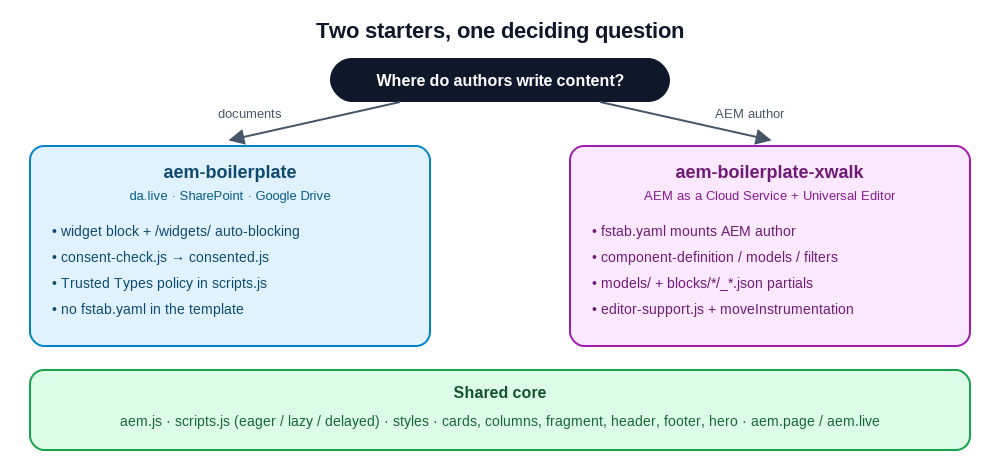
EDS Coder starts every project from the xwalk boilerplate, so you can describe a block like this one, review the generated quote.js, quote.css and _quote.json in the file tree, and preview it before syncing to GitHub.
Sources: aem.live: Developer tutorial · aem.live: Markup, Sections, Blocks and Auto Blocking · aem.live: Anatomy of a project · aem.live: Universal Editor tutorial · adobe-rnd/aem-boilerplate-xwalk on GitHub